🗊 Презентация Operating manual

Категория: Технология
Нажмите для полного просмотра!
Operating manual, слайд №1 Operating manual, слайд №2 Operating manual, слайд №3 Operating manual, слайд №4 Operating manual, слайд №5 Operating manual, слайд №6 Operating manual, слайд №7 Operating manual, слайд №8 Operating manual, слайд №9 Operating manual, слайд №10 Operating manual, слайд №11 Operating manual, слайд №12 Operating manual, слайд №13 Operating manual, слайд №14 Operating manual, слайд №15 Operating manual, слайд №16 Operating manual, слайд №17 Operating manual, слайд №18 Operating manual, слайд №19

Вы можете ознакомиться и скачать презентацию на тему Operating manual. Доклад-сообщение содержит 19 слайдов. Презентации для любого класса можно скачать бесплатно. Если материал и наш сайт презентаций Mypresentation Вам понравились – поделитесь им с друзьями с помощью социальных кнопок и добавьте в закладки в своем браузере.

Слайды и текст этой презентации


Слайд 1


1st Step. Connect the phone’s USB cable to the computer. Double click the icon to enter the program.
Описание слайда:
1st Step. Connect the phone’s USB cable to the computer. Double click the icon to enter the program.

Слайд 2


Click on the icon to enter TOOL’s interface.
Описание слайда:
Click on the icon to enter TOOL’s interface.

Слайд 3


Select necessary files like in the picture
Описание слайда:
Select necessary files like in the picture

Слайд 4


Select MTK_AllInOne_DA.bin
Описание слайда:

Select MTK_AllInOne_DA.bin

Слайд 5


接下来 Click on “Setup data source file”.
Описание слайда:
接下来 Click on “Setup data source file”.

Слайд 6


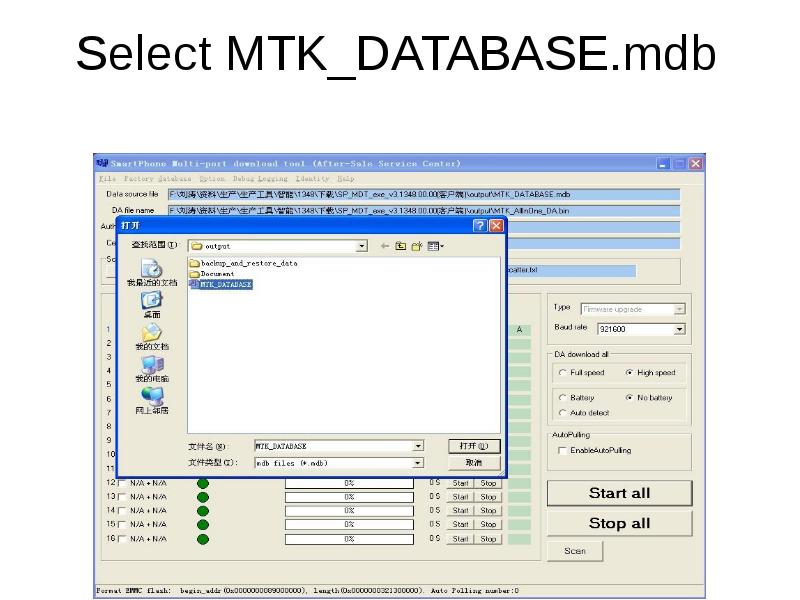
Select MTK_DATABASE.mdb
Описание слайда:
Select MTK_DATABASE.mdb

Слайд 7


Click on Scatter File and in the update package (android5.0 update package)select the file MT6592\MT6582\MT6572_Android_scatter
Описание слайда:
Click on Scatter File and in the update package (android5.0 update package)select the file MT6592\MT6582\MT6572_Android_scatter

Слайд 8


If the error message in the picture were to appear, create the CHECK SUM file with the software MT6592\MT6582\MT6572_Android_scatter
Описание слайда:
If the error message in the picture were to appear, create the CHECK SUM file with the software MT6592\MT6582\MT6572_Android_scatter

Слайд 9


In the folder (Executable file), copy CheckSum_Gen to the decompressed update package. Double click on CheckSum_Gen and press enter.
Описание слайда:
In the folder (Executable file), copy CheckSum_Gen to the decompressed update package. Double click on CheckSum_Gen and press enter.

Слайд 10


The configuration is inmediate
Описание слайда:
The configuration is inmediate

Слайд 11


Click on Scan, click on “Yes”, make sure your phone is NOT turned on, hold on the phone’s volume up button and the power button then connect the...
Описание слайда:
Click on Scan, click on “Yes”, make sure your phone is NOT turned on, hold on the phone’s volume up button and the power button then connect the phone to the computer with the USB and keep the buttons pressed till the scan is completed.

Слайд 12


Wait until the software scan starts automatically, keep volume up button pressed.
Описание слайда:
Wait until the software scan starts automatically, keep volume up button pressed.

Слайд 13


Wait until the scan is finished, like in the picture. Port scan, port scan is successful as illustrated in the picture (all the port used by the...
Описание слайда:
Wait until the scan is finished, like in the picture. Port scan, port scan is successful as illustrated in the picture (all the port used by the computer will be scanned) When scanning ports, user must press for a long time the volume up button,

Слайд 14


One the port scan is over, click on STOP ALL Once the port scan is over, the user can directly click on STOP ALL, in follow-up updates, there is no...
Описание слайда:
One the port scan is over, click on STOP ALL Once the port scan is over, the user can directly click on STOP ALL, in follow-up updates, there is no need to do port scan.

Слайд 15


Select the two options marked in red. When scanning ports, press stop all, like in the picture, please pay attention to the marginal notes on the...
Описание слайда:
Select the two options marked in red. When scanning ports, press stop all, like in the picture, please pay attention to the marginal notes on the picture.

Слайд 16


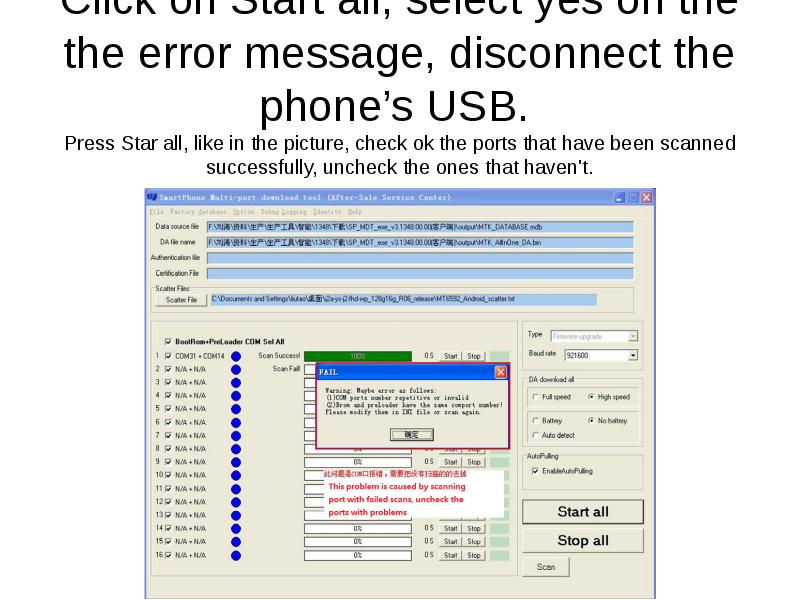
Click on Start all, select yes on the the error message, disconnect the phone’s USB. Press Star all, like in the picture, check ok the ports that...
Описание слайда:
Click on Start all, select yes on the the error message, disconnect the phone’s USB. Press Star all, like in the picture, check ok the ports that have been scanned successfully, uncheck the ones that haven't.

Слайд 17


When the interface is like in the picture shown below, connect the phone to the computer again, and press START ALL again.
Описание слайда:
When the interface is like in the picture shown below, connect the phone to the computer again, and press START ALL again.

Слайд 18


Operating manual, слайд №18
Описание слайда:

Слайд 19


If installation is successful, the interface will show the following aspect,
Описание слайда:
If installation is successful, the interface will show the following aspect,


Теги Operating manual
Похожие презентации
Mypresentation.ru
Загрузить презентацию